
Your listing score
When you review a listing on Step 5 (Review & Activate), you see a listing score out of 100. It shows how well your listing answers the questions buyers ask before they reach out, and it lists what to add or change to raise it.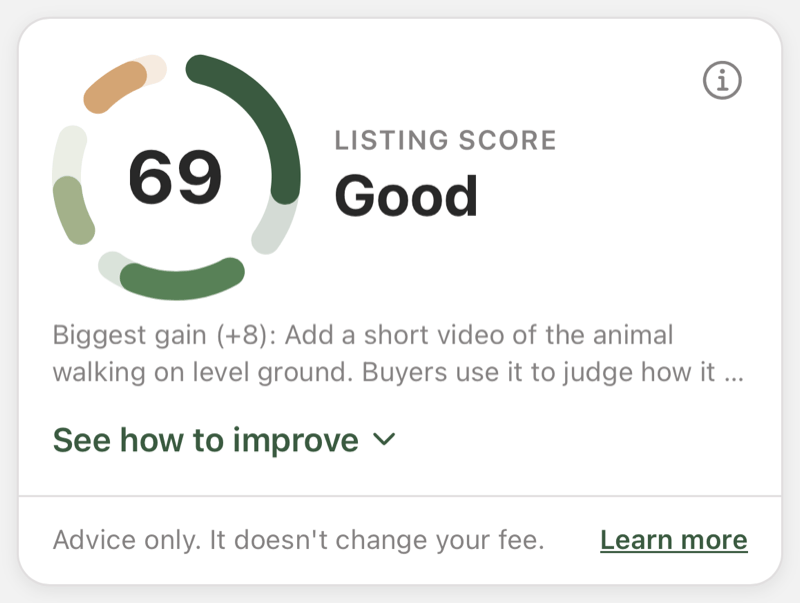
The listing score on Step 5 shows your score and your biggest gain. Tap See how to improve to see all four parts and their tips.
The score is advice only. It doesn’t change your listing fee, it doesn’t stop you from publishing, and it doesn’t change where your listing appears in Browse. Only you and people who can edit the listing see it.
Where you see your score
- Step 5 when you create a listing, above the listing preview
- Step 5 when you extend or renew a listing
- The Manage listing page for active and expired listings
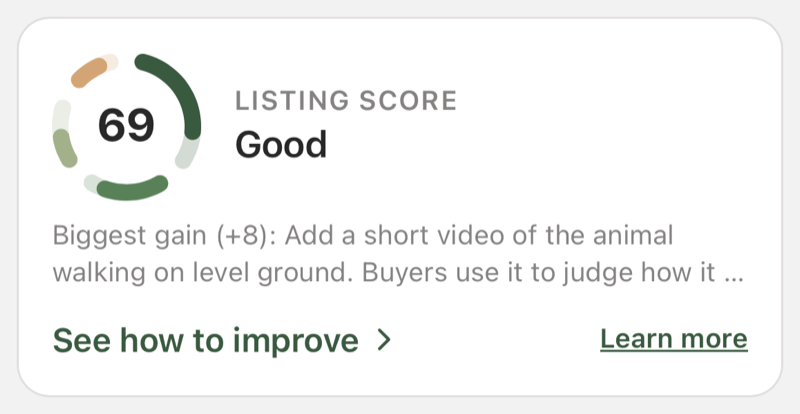
On the Manage listing page, the score shows as a compact card with your biggest gain.
What the labels mean
The four parts
The ring around your score has one colored section per part. The solid color is the points you have earned; the faint color is what’s left to earn.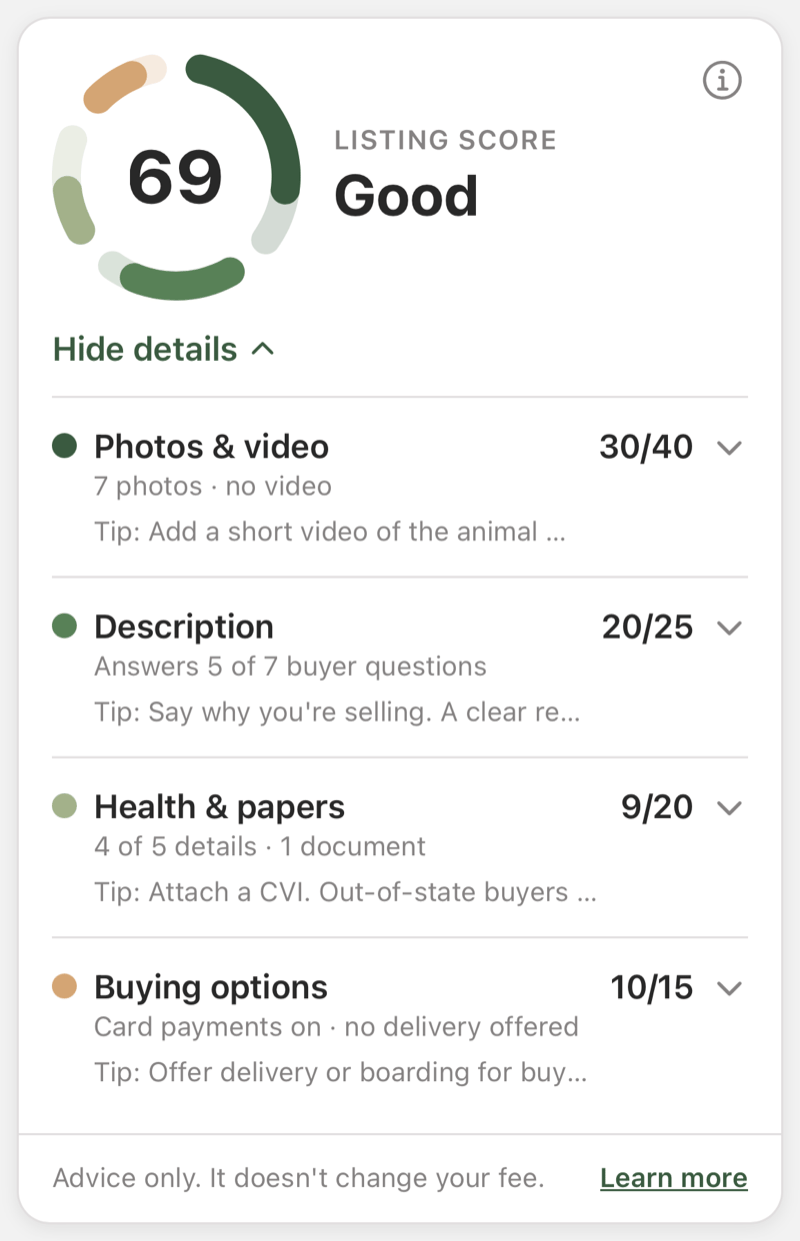
On Step 5, See how to improve opens the four parts in place. Each part shows the points you've earned out of its maximum, and its biggest tip. Tap Hide details to close them.
Photos & video
- How many photos. Points rise up to 8 photos. Five clear photos earn most of them.
- A video. A short clip of the animal walking on level ground helps buyers judge how it moves. For horses, show each gait.
- Photo quality. Each photo is rated on lighting, focus, framing, and background. A clear daylight phone photo of the whole animal earns full marks. You don’t need a professional camera.
- A mix of angles. A face close-up, a side view of the whole animal standing square, and one more angle, such as from the front or rear, moving, or with its parents.
Description
Your title and description are checked for the questions buyers usually ask:- Animals: temperament, health and care (vaccinations, worming, vet checks), age or birth date, history or lineage, diet and housing, and why you’re selling. Handling or training and what’s included count too when they fit the animal.
- Feed: cutting or harvest date, bale size and weight (or bag size), how it’s been stored, and nutrition or forage test results.
- phone numbers or email addresses (buyers are protected when they message you in the app)
- requests to pay outside the app, such as Venmo, Zelle, or wire transfers
- pressure, such as “must go today”
- guarantees, such as “100% healthy”
Health & papers
- Details. The share of the Step 2 detail fields you’ve filled in, such as age, weight, and lineage.
- A current health paper. For example a CVI, a Coggins test, or a veterinary health certificate, depending on the animal. For feed, a forage analysis. Expired papers don’t count.
- Registration, lineage, or ID papers. For example breed registration, a pedigree, or a scrapie ID record. This doesn’t apply to feed.
- Papers buyers can see before they buy. At least one document set to Public (Pre-Sale). See Listing Documents.
Buying options
- Card payments. Buyers can pay securely in the app. See Card payouts.
- Delivery, boarding, or another service. Add one under Add-Ons on Step 5.
- A profile photo, so buyers know who they’re dealing with.
How to raise your score
Tap See how to improve, then tap a part to see its tips. Tips show how many points they’re worth, such as +8 (smaller fixes worth less than a point don’t show a number). A link takes you to the place to make the change: a step of the listing wizard, card payment setup, your profile, or the add-on form. When all of a part’s tips are fixed in the same place, the link appears once under them. When they’re fixed in different places, as in Buying options, each tip has its own link.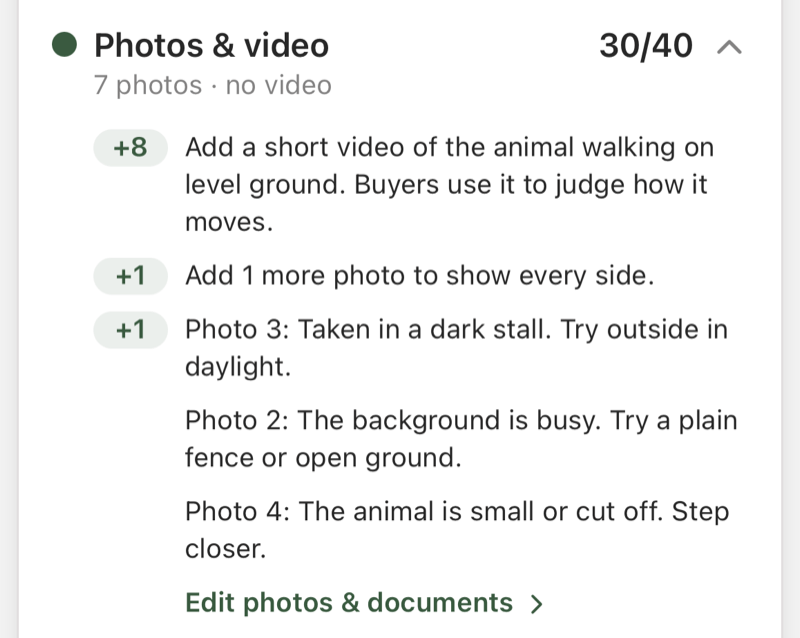
Tap a part to see all its tips, biggest gain first. Photo tips name the photo to fix.
- Add a short video.
- Add photos until you have at least 5 clear ones.
- Attach a current health paper and set it so buyers can see it.
- Answer the buyer questions your description is missing. Enhance with AI on Step 1 can tidy the wording.
How the photo and description review works
- An AI looks at your photos, one frame from each video, your title and description, and the listing’s category and species. It rates what it sees. The points are then worked out by fixed rules, the same for every listing.
- The review runs again only when you change those things. Changes to documents, add-ons, or details update your score straight away.
- It doesn’t read your documents. Only their type, expiry date, and who can see them count.
- The review can be wrong. If a tip doesn’t fit your listing, you can ignore it.
Why your score says “Estimated”
Sometimes the photo and description review can’t run, for example on a slow connection. You still see a score, with Estimated under it: the photo-quality and description parts use a rough estimate until the review runs the next time you open the page.Switching a quick listing to complete
Quick listings don’t have detail fields or documents, so they score 0 for Health & papers. To add them, tap Switch to complete listing in that part’s tips.- The switch is one way. You can’t switch a complete listing back to quick.
- Some details are required before you can publish a complete listing.
- A listing that is already live stays live while you add details and papers.