
Buying with card at checkout
When a seller has card payments set up, you can buy directly from a listing and pay securely with your card. This guide walks you through the whole checkout flow, from selecting what you want to buy to confirming payment. The most important thing to know up front: you pay the seller directly. Card payments are processed securely by Stripe, and the price you see at checkout already includes processing fees. See Card payouts and the Stripe Direct model for how this works on the seller’s side.Before you start
A few things to know:- Card checkout only appears when the seller has set up payouts. If the seller hasn’t connected card payments yet, you’ll see a note inviting you to message them to arrange the sale instead.
- You can’t buy your own listing. Checkout is disabled on listings you own.
- Cash-only inventory stays pay-in-person. If a row has no card price, it isn’t included in card checkout — you arrange that directly with the seller and can confirm it later. See Cash purchase confirmation.
Step-by-step checkout
1
Select what you want to buy
On the listing, find the Ready to Buy? section and choose the quantity you’d like for each option (for example, by sex). The button at the bottom totals every selected line into one order and shows the price, e.g. Buy with card · $250.00. The card price already includes processing fees.
2
Open checkout
Choose Buy with card to open the Checkout sheet. Here you’ll see any optional services the seller offers, a full price breakdown, and a place to enter a coupon code.
3
Add optional services (if offered)
Sellers can offer optional services such as delivery, boarding (priced per day), or flat-rate services and supplies. Select any you’d like and the total updates automatically. Delivery is priced per mile — see How per-mile delivery is calculated below.
4
Apply a coupon (optional)
If you have a coupon code, enter it in the Coupon code field and choose Apply. The discount is validated and applied to your total. You can remove it at any time before paying.
5
Continue to payment
Review the Total, then choose Continue to payment. You’ll enter your card details in Stripe’s secure payment form. The payment goes directly to the seller.
6
Confirm and you're done
After a successful payment, you’ll see a confirmation. We email you a receipt along with the seller’s contact details and the exact pickup location so you can arrange collection. You can also leave a review for the seller right away.
How per-mile delivery is calculated
When a seller offers delivery, it’s priced per mile. The key thing to understand is that you never type in a number of miles yourself — and you never need to know how far away the seller is. Instead, the app does it for you:- You select the delivery service and search for your delivery address using the address picker.
- When you pick your address, the app uses Google to calculate the actual driving distance between the seller’s pickup point and your address.
- That distance is multiplied by the seller’s per-mile rate and added to your total — all automatically.
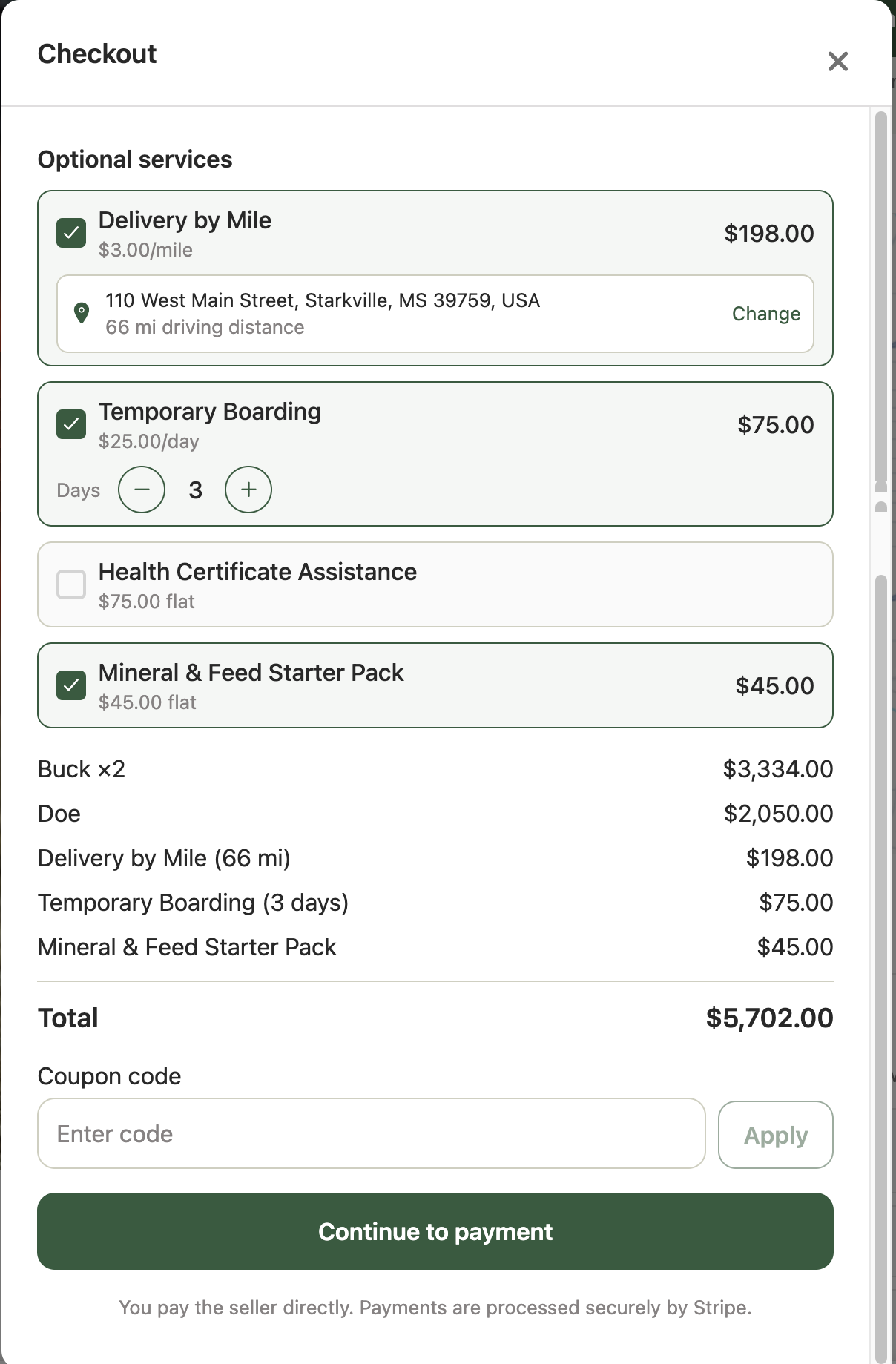
Checkout with delivery selected — the driving distance and per-mile delivery cost are calculated automatically from your delivery address.
Why it works this way
- You only enter your address — never the mileage. This keeps the price accurate and removes any guesswork.
- It’s the real driving distance, not a straight line. Google’s routing is used so the mileage reflects how a vehicle would actually travel.
- The seller’s exact location stays private. Only the calculated distance is shown to you — the seller’s precise pickup point is never revealed during checkout.
- The price can’t be tampered with. The distance, and therefore the delivery cost, is computed and re-verified securely before payment, so the final charge always reflects the genuine distance.
Partial miles are rounded up to the next whole mile (and a delivery is always at least 1 mile), so a short trip is never billed as zero.
Understanding your price breakdown
Your checkout total is built from:- Item lines — each selected inventory line (for example, “Buck ×2”).
- Discount — any applied coupon, shown as a negative amount.
- Optional services — delivery (shown with the calculated mileage, e.g. “Delivery (42 mi)”), boarding (shown with the number of days), and any flat-rate services or supplies you selected.
- Total — the final amount you’ll pay, with processing fees already included in card prices.
After your purchase
Once payment succeeds:- Your purchase is confirmed immediately.
- You receive an email receipt with the seller’s contact details and the exact pickup location.
- You can leave a review for the seller. See Reviews and reputation.
If something goes wrong
- Payment didn’t complete. Choose Try again to return to the checkout summary, or close and start over. Your card isn’t charged unless payment succeeds.
- The seller hasn’t set up card payments. You can still message the seller to arrange the sale, and use cash purchase confirmation afterward.
- Delivery address won’t resolve or is out of range. Try a more specific or closer address, or arrange pickup with the seller.
Frequently asked questions
Do I enter how many miles the delivery is?
Do I enter how many miles the delivery is?
No. You only choose your delivery address. The app uses Google to calculate the actual driving distance from the seller’s pickup point to your address and prices the delivery automatically.
Can I see exactly where the seller is located?
Can I see exactly where the seller is located?
No. For privacy, the seller’s precise pickup location isn’t shown during checkout. You’ll see the calculated driving distance, and the exact pickup location is shared with you after a successful purchase.
Who am I paying?
Who am I paying?
You pay the seller directly. Payments are processed securely by Stripe, and the seller is the merchant of record. See Card payouts and the Stripe Direct model.
Why is the card price higher than a cash price?
Why is the card price higher than a cash price?
Card prices include payment processing fees so the amount you see is the amount you pay. Some inventory may be cash-only, in which case it isn’t part of card checkout.
What if I'd rather pick up the animal myself?
What if I'd rather pick up the animal myself?
If the seller offers delivery but you don’t need it, you can confirm that you’ll pick up the animal yourself and continue to payment without adding delivery.