> ## Documentation Index
> Fetch the complete documentation index at: https://docs.theanimaltraders.com/llms.txt
> Use this file to discover all available pages before exploring further.
# Buying with card at checkout
> A step-by-step guide to the buyer checkout flow — selecting quantity, adding optional services like delivery, how per-mile delivery distance is calculated automatically with Google, applying coupons, and paying the seller securely with Stripe
# Buying with card at checkout
When a seller has card payments set up, you can buy directly from a listing and pay securely with your card. This guide walks you through the whole checkout flow, from selecting what you want to buy to confirming payment.
The most important thing to know up front: **you pay the seller directly**. Card payments are processed securely by [Stripe](https://stripe.com), and the price you see at checkout already includes processing fees. See [Card payouts and the Stripe Direct model](/help/card-payouts) for how this works on the seller's side.
## Before you start
A few things to know:
* **Card checkout only appears when the seller has set up payouts.** If the seller hasn't connected card payments yet, you'll see a note inviting you to message them to arrange the sale instead.
* **You can't buy your own listing.** Checkout is disabled on listings you own.
* **Cash-only inventory stays pay-in-person.** If a row has no card price, it isn't included in card checkout — you arrange that directly with the seller and can confirm it later. See [Cash purchase confirmation](/help/cash-confirmation).
## Step-by-step checkout
On the listing, find the **Ready to Buy?** section and choose the quantity you'd like for each option (for example, by sex). The button at the bottom totals every selected line into one order and shows the price, e.g. **Buy with card · \$250.00**. The card price already includes processing fees.
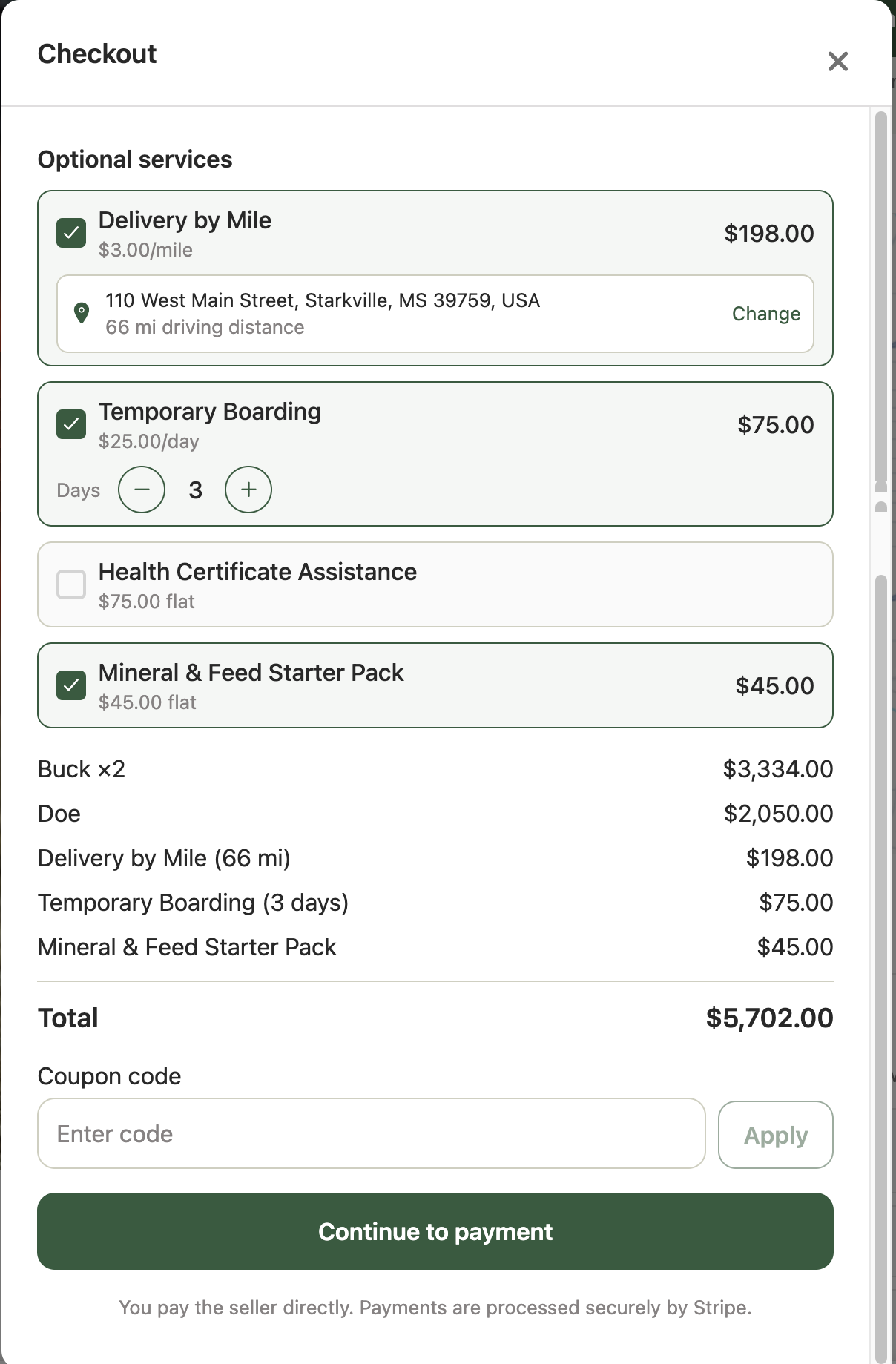
Choose **Buy with card** to open the **Checkout** sheet. Here you'll see any optional services the seller offers, a full price breakdown, and a place to enter a coupon code.
Sellers can offer optional services such as **delivery**, **boarding** (priced per day), or flat-rate services and supplies. Select any you'd like and the total updates automatically. Delivery is priced **per mile** — see [How per-mile delivery is calculated](#how-per-mile-delivery-is-calculated) below.
If you have a coupon code, enter it in the **Coupon code** field and choose **Apply**. The discount is validated and applied to your total. You can remove it at any time before paying.
Review the **Total**, then choose **Continue to payment**. You'll enter your card details in Stripe's secure payment form. The payment goes directly to the seller.
After a successful payment, you'll see a confirmation. We email you a receipt along with the seller's contact details and the exact pickup location so you can arrange collection. You can also leave a review for the seller right away.
## How per-mile delivery is calculated
When a seller offers **delivery**, it's priced **per mile**. The key thing to understand is that **you never type in a number of miles yourself** — and you never need to know how far away the seller is.
Instead, the app does it for you:
1. You select the delivery service and search for **your delivery address** using the address picker.
2. When you pick your address, the app uses **Google** to calculate the **actual driving distance** between the seller's pickup point and your address.
3. That distance is multiplied by the seller's per-mile rate and added to your total — all automatically.
While the distance is being looked up, you'll see **"Calculating driving distance…"**, and once it's ready the picker shows the resolved distance, for example **"42 mi driving distance"**. The per-mile line in your price breakdown updates to match.
 ### Why it works this way
* **You only enter your address — never the mileage.** This keeps the price accurate and removes any guesswork.
* **It's the real driving distance, not a straight line.** Google's routing is used so the mileage reflects how a vehicle would actually travel.
* **The seller's exact location stays private.** Only the calculated distance is shown to you — the seller's precise pickup point is never revealed during checkout.
* **The price can't be tampered with.** The distance, and therefore the delivery cost, is computed and re-verified securely before payment, so the final charge always reflects the genuine distance.
Partial miles are rounded up to the next whole mile (and a delivery is always at least 1 mile), so a short trip is never billed as zero.
Sellers can set a maximum delivery range. If your address is outside that range, you'll see a note that delivery isn't available for that location — try a closer drop-off address or arrange pickup with the seller instead. If the seller offers delivery but you'd rather collect the animal yourself, you can check the box confirming you'll pick it up, and continue without adding delivery.
## Understanding your price breakdown
Your checkout total is built from:
* **Item lines** — each selected inventory line (for example, "Buck ×2").
* **Discount** — any applied coupon, shown as a negative amount.
* **Optional services** — delivery (shown with the calculated mileage, e.g. "Delivery (42 mi)"), boarding (shown with the number of days), and any flat-rate services or supplies you selected.
* **Total** — the final amount you'll pay, with processing fees already included in card prices.
The final amount is always calculated and confirmed securely before payment — your device never sets the price on its own.
## After your purchase
Once payment succeeds:
* Your purchase is **confirmed immediately**.
* You receive an **email receipt** with the seller's contact details and the **exact pickup location**.
* You can **leave a review** for the seller. See [Reviews and reputation](/help/reviews).
## If something goes wrong
* **Payment didn't complete.** Choose **Try again** to return to the checkout summary, or close and start over. Your card isn't charged unless payment succeeds.
* **The seller hasn't set up card payments.** You can still [message the seller](/help/messages) to arrange the sale, and use [cash purchase confirmation](/help/cash-confirmation) afterward.
* **Delivery address won't resolve or is out of range.** Try a more specific or closer address, or arrange pickup with the seller.
## Frequently asked questions
No. You only choose your delivery address. The app uses Google to calculate the actual driving distance from the seller's pickup point to your address and prices the delivery automatically.
No. For privacy, the seller's precise pickup location isn't shown during checkout. You'll see the calculated driving distance, and the exact pickup location is shared with you after a successful purchase.
You pay the seller directly. Payments are processed securely by Stripe, and the seller is the merchant of record. See [Card payouts and the Stripe Direct model](/help/card-payouts).
Card prices include payment processing fees so the amount you see is the amount you pay. Some inventory may be cash-only, in which case it isn't part of card checkout.
If the seller offers delivery but you don't need it, you can confirm that you'll pick up the animal yourself and continue to payment without adding delivery.
## Related help
* [Card payouts and the Stripe Direct model](/help/card-payouts)
* [Cash purchase confirmation](/help/cash-confirmation)
* [Messages](/help/messages)
* [Reviews and reputation](/help/reviews)
### Why it works this way
* **You only enter your address — never the mileage.** This keeps the price accurate and removes any guesswork.
* **It's the real driving distance, not a straight line.** Google's routing is used so the mileage reflects how a vehicle would actually travel.
* **The seller's exact location stays private.** Only the calculated distance is shown to you — the seller's precise pickup point is never revealed during checkout.
* **The price can't be tampered with.** The distance, and therefore the delivery cost, is computed and re-verified securely before payment, so the final charge always reflects the genuine distance.
Partial miles are rounded up to the next whole mile (and a delivery is always at least 1 mile), so a short trip is never billed as zero.
Sellers can set a maximum delivery range. If your address is outside that range, you'll see a note that delivery isn't available for that location — try a closer drop-off address or arrange pickup with the seller instead. If the seller offers delivery but you'd rather collect the animal yourself, you can check the box confirming you'll pick it up, and continue without adding delivery.
## Understanding your price breakdown
Your checkout total is built from:
* **Item lines** — each selected inventory line (for example, "Buck ×2").
* **Discount** — any applied coupon, shown as a negative amount.
* **Optional services** — delivery (shown with the calculated mileage, e.g. "Delivery (42 mi)"), boarding (shown with the number of days), and any flat-rate services or supplies you selected.
* **Total** — the final amount you'll pay, with processing fees already included in card prices.
The final amount is always calculated and confirmed securely before payment — your device never sets the price on its own.
## After your purchase
Once payment succeeds:
* Your purchase is **confirmed immediately**.
* You receive an **email receipt** with the seller's contact details and the **exact pickup location**.
* You can **leave a review** for the seller. See [Reviews and reputation](/help/reviews).
## If something goes wrong
* **Payment didn't complete.** Choose **Try again** to return to the checkout summary, or close and start over. Your card isn't charged unless payment succeeds.
* **The seller hasn't set up card payments.** You can still [message the seller](/help/messages) to arrange the sale, and use [cash purchase confirmation](/help/cash-confirmation) afterward.
* **Delivery address won't resolve or is out of range.** Try a more specific or closer address, or arrange pickup with the seller.
## Frequently asked questions
No. You only choose your delivery address. The app uses Google to calculate the actual driving distance from the seller's pickup point to your address and prices the delivery automatically.
No. For privacy, the seller's precise pickup location isn't shown during checkout. You'll see the calculated driving distance, and the exact pickup location is shared with you after a successful purchase.
You pay the seller directly. Payments are processed securely by Stripe, and the seller is the merchant of record. See [Card payouts and the Stripe Direct model](/help/card-payouts).
Card prices include payment processing fees so the amount you see is the amount you pay. Some inventory may be cash-only, in which case it isn't part of card checkout.
If the seller offers delivery but you don't need it, you can confirm that you'll pick up the animal yourself and continue to payment without adding delivery.
## Related help
* [Card payouts and the Stripe Direct model](/help/card-payouts)
* [Cash purchase confirmation](/help/cash-confirmation)
* [Messages](/help/messages)
* [Reviews and reputation](/help/reviews)